Coordinate Converter Tool
Stop jumping between your browser and your drafting space. Plug and play our premium native tool to transform coordinates directly inside AutoCAD. No installation needed—100% safe, clean, and blazingly fast.
Download ToolRequires AutoCAD 2018 or newer (64-bit Windows)
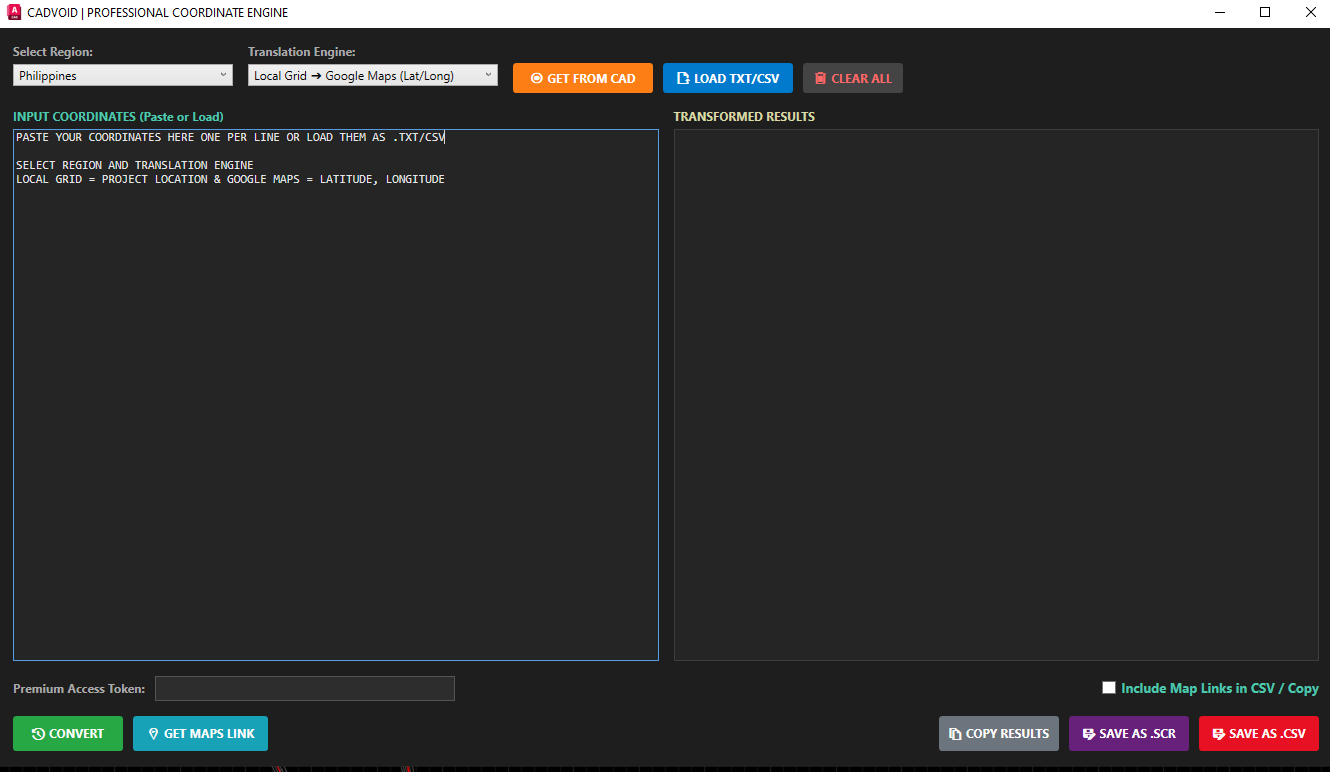
The native, dark-mode Windows interface running directly over AutoCAD. (Click to enlarge)
1. Direct CAD Extraction
Click the GET FROM CAD button, then simply click a point anywhere in your active drawing. The tool instantly grabs the exact coordinates. Want to build a list? Just click the button again to grab your next point. Compile hundreds of coordinates in seconds without typing a single number.
2. Paste & Bulk Loading
Received surveyor data? You can simply Paste your raw list directly into the input box, or click LOAD TXT/CSV to browse your computer. The engine automatically formats massive lists of coordinates for processing.
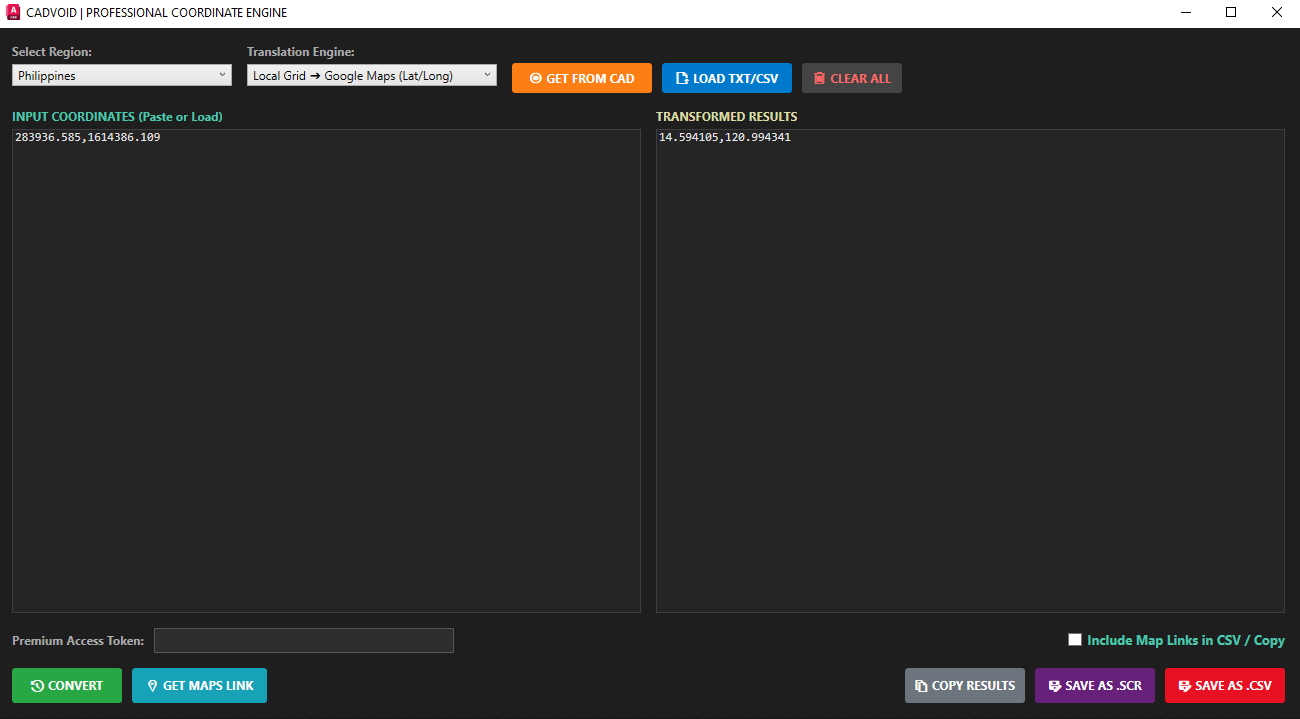
Select your global region and your target projection engine. (Click to enlarge)
3. Geodetic Transformation
Once your data is loaded, hit CONVERT. The tool securely processes your data using advanced geodetic algorithms to calculate precise global or local coordinates.
4. Smart Map Links & Export
Check the "Include Map Links" box before saving! When you Copy Data or Save as CSV, the engine automatically generates clickable Google Maps URLs. Need to draw it? Click SAVE AS .SCR to instantly create an AutoCAD-ready script.
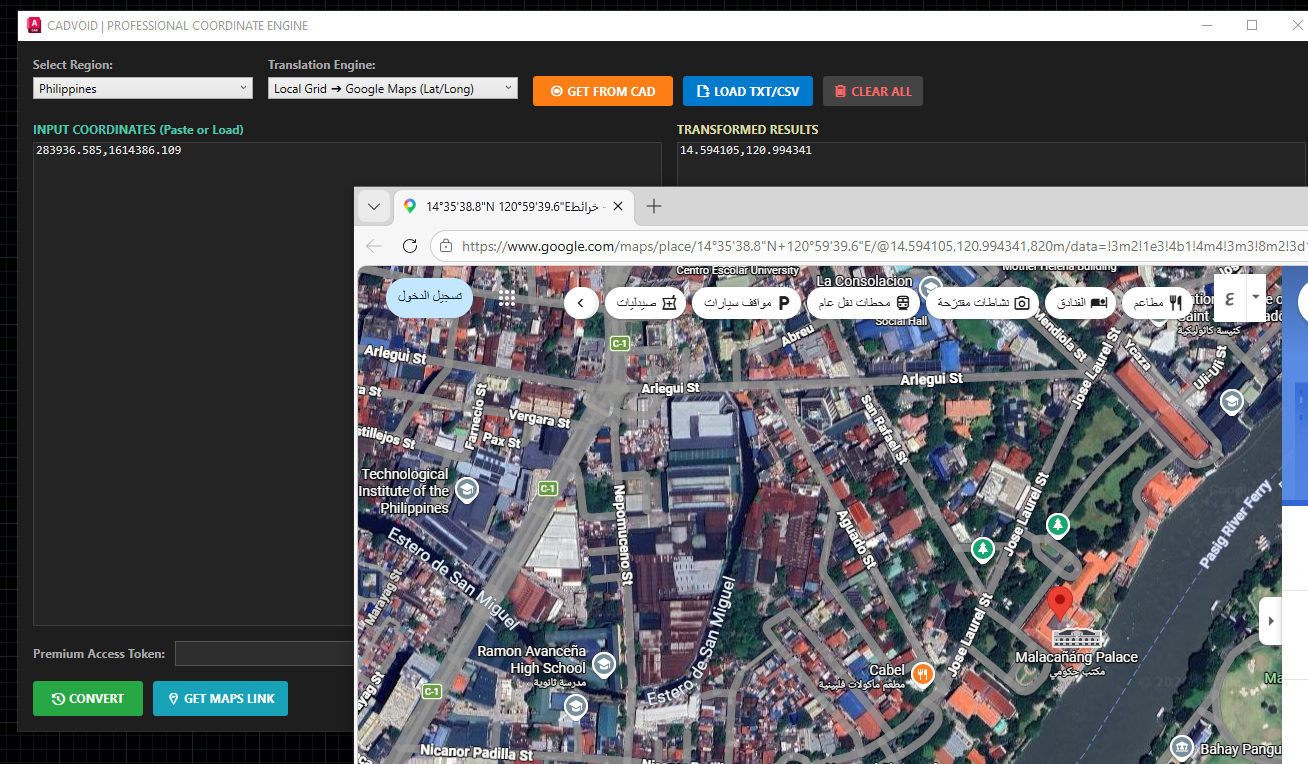
Calculated results, ready to be exported to CSV, drawn via AutoCAD script, opened directly via Google Maps, or copied as map links. (Click to enlarge)
Not at your CAD workstation?
Access our powerful coordinate engine directly from any browser, on any device. Perfect for quick field checks or batch processing on the go.
Installation & Setup
Step 1: Unblock the File (Optional / If Needed)
Depending on your Windows security settings, downloaded files might be blocked. If the tool refuses to load, right-click the downloaded tool, select Properties, check the "Unblock" box at the bottom, and click Apply.
Step 2: Plug & Play (NETLOAD)
Open AutoCAD. Type NETLOAD into the command line and press Enter. Select the downloaded file. Once loaded, simply type CVCONVERT to launch the interface!
Step 3: Load Permanently (Startup Suite)
Want the tool available every single time you open AutoCAD? Put it in the Startup Suite:
- Type
APPLOADin AutoCAD. - Look for the Startup Suite section (bottom right) and click the Contents button.
- Click Add, select the downloaded tool file, and close all windows.
- The
CVCONVERTcommand is now permanently ready to use!