
AutoCAD DLL Manager.
Stop loading your .NET plugins one by one. CADVOID DLL Manager helps you organize AutoCAD DLL files and automatically load your registered plugins whenever the manager LISP starts.
Manage your DLLs in one place.
One organized manager for your AutoCAD .NET plugins, without repeatedly browsing for each DLL.
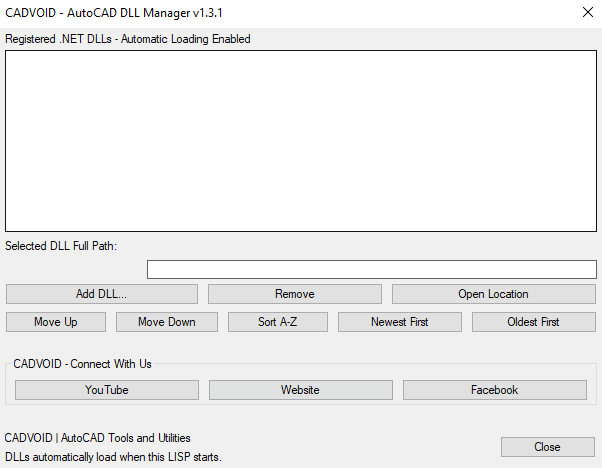
If you use several AutoCAD .NET plugins, repeatedly typing NETLOAD, browsing to the correct folder, and selecting each DLL can be frustrating. CADVOID DLL Manager simplifies this workflow.
Load the LISP through APPLOAD, then type DLLMANAGER to open the manager. Click Add DLL... to browse for your plugin files and add them to your personal list. The manager displays each filename and the selected file's full path.
Every DLL saved in the list is included in automatic loading whenever the manager LISP starts. Your list is saved between AutoCAD sessions, so you don't need to select the same DLLs repeatedly. DLLs added during a running AutoCAD session will be loaded the next time the LISP starts.
Maintain the list of DLL plugins you want to use.
See where each registered plugin is stored.
Open the selected DLL's folder in Windows Explorer.
Move entries up or down, or sort by name or file modification date.
Make it automatic whenever AutoCAD starts.
Configure AutoCAD's Startup Suite once, and the manager LISP can load your saved DLL list at startup.
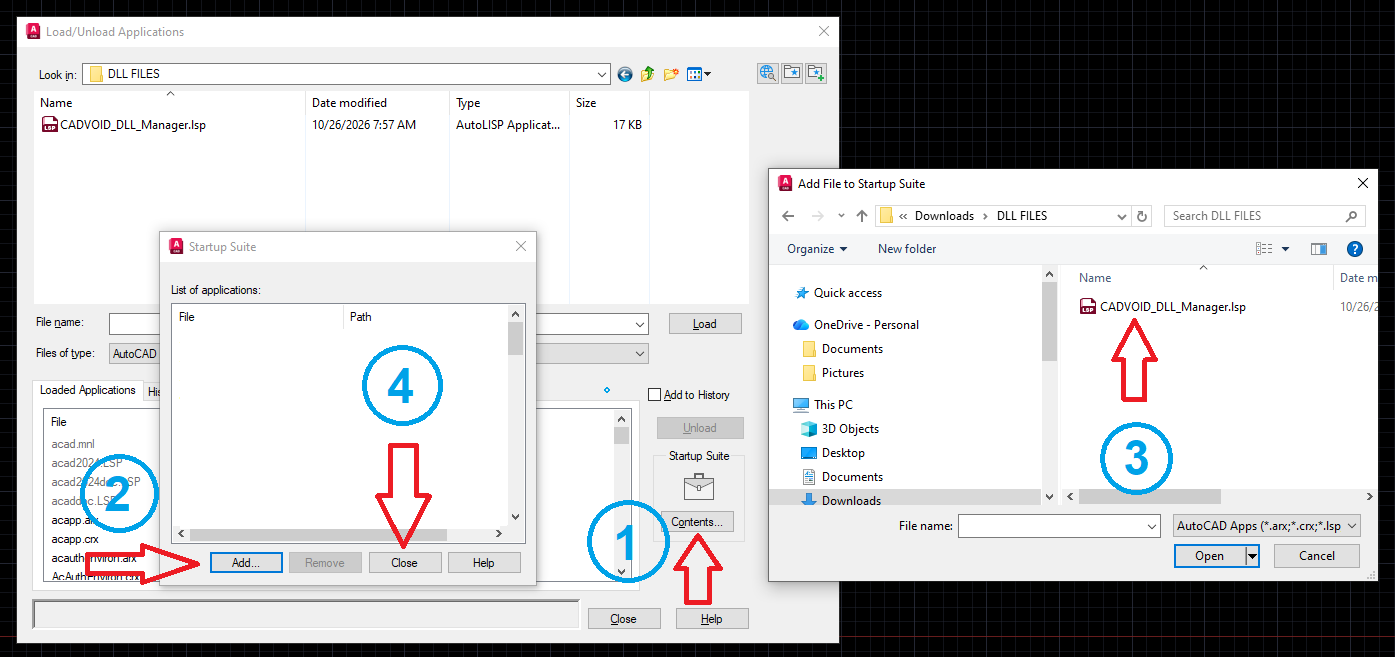
Want the DLL Manager to run automatically every time you launch AutoCAD? Add its LISP file to the APPLOAD Startup Suite. You only need to configure this once.
- Save CADVOID_DLL_Manager.lsp in a permanent folder. Do not move it after setup.
- Open AutoCAD, type APPLOAD, and press Enter.
- Find the Startup Suite section and click Contents....
- Click Add..., browse to CADVOID_DLL_Manager.lsp, and select it.
- Close the Startup Suite and APPLOAD windows. You're all set!
From then on, AutoCAD will load the manager LISP through its Startup Suite, and the LISP will attempt to load every DLL saved in your list. Your plugins can be ready without repeatedly running NETLOAD or opening the manager window.
Looking for AutoCAD DLL Plugins?
Discover CADVOID AutoCAD plugins and add your favorite DLL tools to the DLL Manager for convenient automatic loading.
Ready to simplify your AutoCAD startup?
Download CADVOID DLL Manager, register your trusted DLL plugins, and let the Startup Suite take care of loading them.