
Three-point annotation workflow
Pick the coordinate target, elbow direction and landing length to produce clear leader callouts.
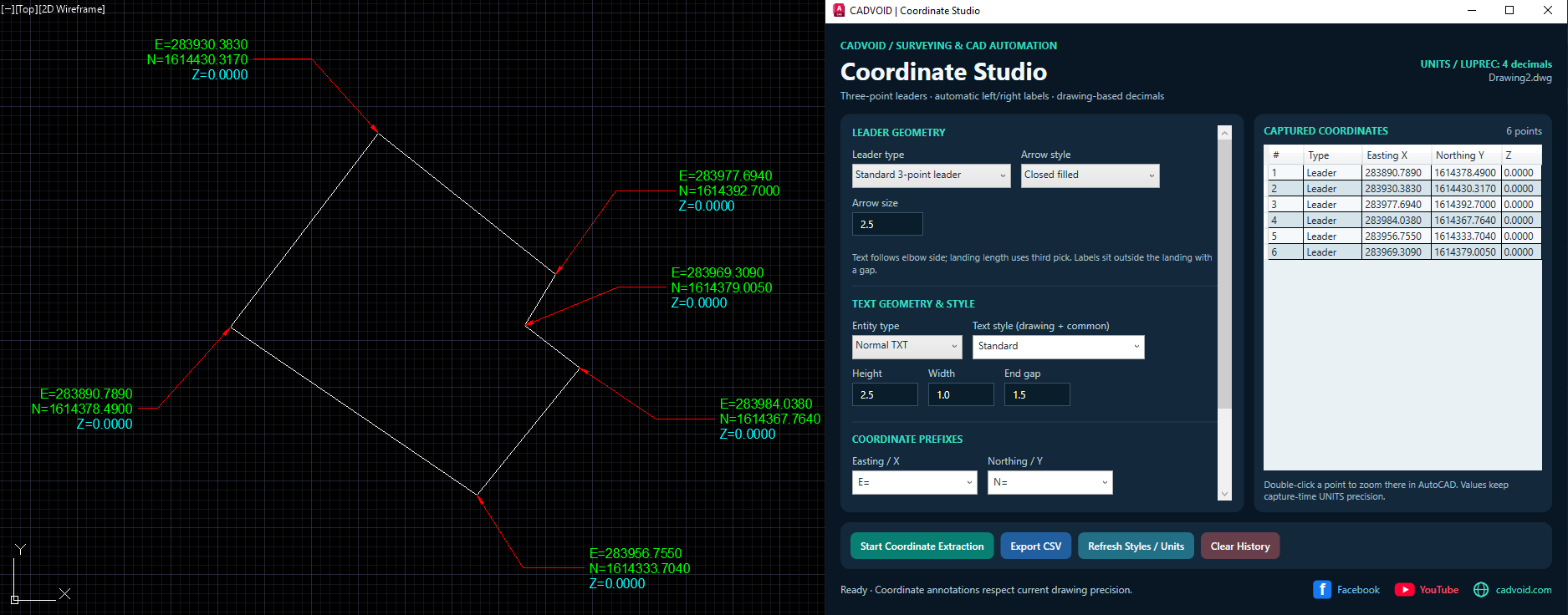
Precise coordinate callouts. Clean drawings. Faster documentation.
Create professional coordinate annotations directly inside AutoCAD with customizable leaders, clear coordinate labels, and an organized capture workflow.
CADVOID Coordinate Studio is a drafting and surveying companion that creates clear coordinate annotations directly inside an AutoCAD drawing. Define a coordinate target, choose the elbow position, and place the leader landing through an intuitive three-point workflow. The tool generates coordinate labels from the selected drawing location with formatting controlled by your settings.
Choose standard leaders or native AutoCAD MultiLeaders. Adjust arrow styles, sizes, text height, width factor, text gap, coordinate prefixes, text styles, and annotation layers to match the needs of your project. Easting/X and Northing/Y are shown, with Elevation/Z available as an optional third value. Coordinate precision follows the drawing precision at the moment a point is captured.
Captured coordinates remain accessible in an in-session history list. Review values, double-click a recorded point to locate it in the original drawing, and export recorded points to a CSV file for additional documentation. The plugin also reconciles supported captured annotations after applicable leader changes while the session remains active.
Ideal for surveying documentation, civil and infrastructure drawings, setting-out plans, site records, and other technical drafting workflows that need consistent, readable coordinate callouts. Coordinate Studio reads drawing coordinates; it is not a geographic coordinate-system converter.
Tools and settings built to improve coordinate annotation workflows inside AutoCAD.
Pick the coordinate target, elbow direction and landing length to produce clear leader callouts.
Work with standard AutoCAD leaders or attached-text AutoCAD MultiLeaders.
Show Easting/X and Northing/Y with optional Elevation/Z, custom prefixes and drawing-based decimal precision.
Set text type, style, height, width factor, gap, arrow type and size, and annotation layers.
Review your coordinate annotations and double-click entries to find them in the active drawing.
Export recorded coordinates and reconcile supported annotations after editing their leaders.
A straightforward setup using AutoCAD’s NETLOAD command.
NETLOAD in the AutoCAD command line and press Enter..dll), select it, and click Open.XYZ and press Enter.After NETLOAD, type this command in AutoCAD to launch the plugin.
Coordinate Studio uses a three-point leader workflow: pick the target, set the elbow, and define the landing.
Automatically load your registered AutoCAD DLL plugins whenever AutoCAD starts. Set up the free CADVOID DLL Manager once and skip repetitive manual loading.
Set Up Automatic DLL Loading ↗Enter the universal activation key the first time you open the licensed plugin.
One universal activation key for all users. No activation or computer limit. An internet connection is required for activation and online verification whenever the protected tool is opened.
If Windows blocks a downloaded file, review its source before choosing Unblock in file Properties. Load only files downloaded from a source you trust.
Annotations are based on coordinates inside the active drawing. Always confirm your drawing units, coordinate system, and precision before using exported records in project documentation.
Download the plugin and follow the official video tutorial or Facebook walkthrough. Links can be updated at the top of this PHP file whenever they are published.